
How to Create Professional Designs with Canva for Free
A practical beginner guide to creating polished social posts, thumbnails, posters, and presentations with Canva without a budget.
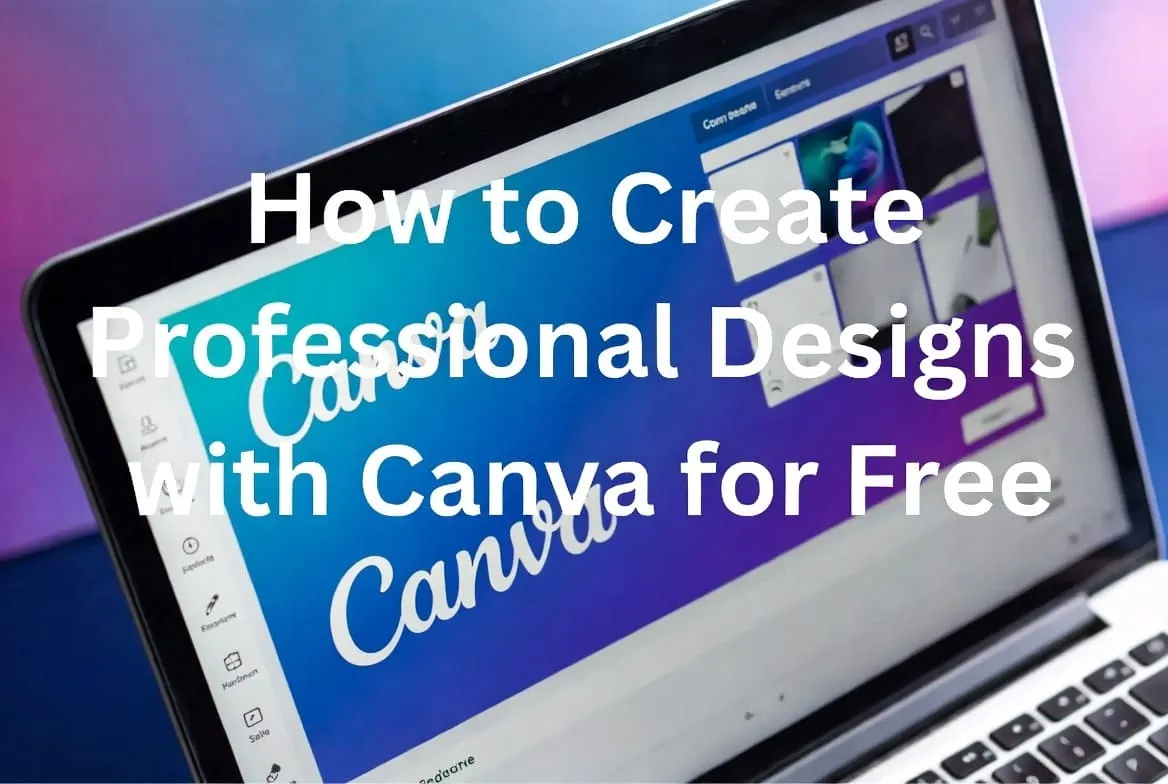
If you have ever looked at a post, Instagram design, or YouTube thumbnail and thought, “How do people even make this?” you are not alone.
The good news is that you do not need to be a designer or buy expensive tools. With Canva, you can make professional-looking designs for free. I mean clean, modern designs that people might assume took hours to make.
I have used it for social media posts, thumbnails, and simple flyers. Once you get comfortable with Canva, it feels less like designing and more like arranging things nicely.
1. Start with a template
You do not need to start from a blank page. Canva has ready-made templates for Instagram posts, posters, YouTube thumbnails, business cards, and presentations. Search for what you need and then customize it.
2. Keep things simple
A common mistake is trying to add everything. More text, colors, and icons quickly make a design look messy.
- Stick to two fonts
- Use two or three colors
- Leave enough empty space
It may feel too plain at first, but simplicity is often what makes a design look professional.
3. Fonts matter more than people think
Fonts can completely change the mood of your Canva design. Use a strong font for titles, keep body text simple and readable, and avoid mixing too many styles.
4. Pay attention to spacing
Spacing is one of those things nobody notices when it is good, but everyone notices when it is bad. Give text room to breathe, keep alignment consistent, and do not push everything into one corner.
5. Use clear images
Even a good design can fall apart if the image quality is poor. Canva has a free image library, so replace blurry images and choose visuals that support your message.
6. Stick to a color theme
Pick a small color palette and stay with it. Black and white with one accent color is often enough. Canva also suggests palettes when you need help.
7. Use alignment tools
Canva provides alignment guides for a reason. Use them to center elements, line things up evenly, and keep the page balanced.
8. Do not overdo effects
Shadows, glow, and outlines can work in moderation. Too many effects make a design messy. A simple approach usually looks more professional.
9. Grids and frames help a lot
Grids and frames let you place images neatly without guessing. They are especially helpful when a layout contains several images or product photos.
10. Export properly
Choose the format based on how the design will be used:
- PNG for high-quality images
- JPG for smaller file sizes
- PDF for printing
A small honest note
Your first Canva designs may not look amazing, and that is normal. The more you practice, the better spacing, placement, and balance will feel. Start with one simple project, keep it clean, and improve it one step at a time.
Related articles
How to Use Canva for Beginners
Learning how to use Canva for beginners is easier than you think.
Canva vs Photoshop for Beginners - Which Is Better in 2026?
Canva vs Photoshop for beginners is a common debate in 2026.
Notion Beginner Guide
A practical Notion beginner guide to help you get started with Notion in 2026.