
How to Clean Laptop Storage
Simple steps to clean laptop storage and get things back to normal.
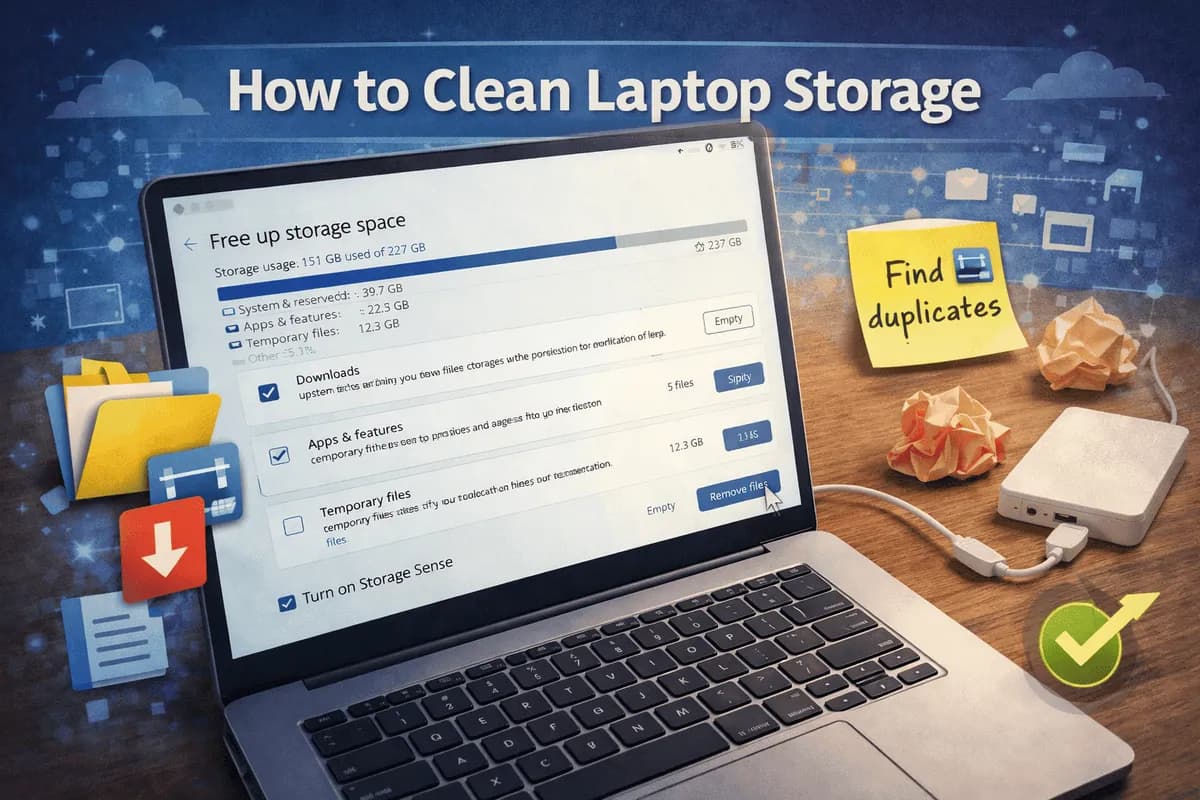
If your laptop has been running slowly lately it is probably in your imagination. Choppers. One day everything runs fine. Then suddenly even opening a folder feels like a big task.
Most of the time it is not some technical problem. It is just clutter. Too many files, apps and random stuff eating up your laptop storage.
I once checked my laptop. Found old downloads from years ago. I did not even remember saving them.
Anyway let us get through this step by step. Nothing complicated. Just simple ways to clean your laptop storage and get things back to normal.
Why Laptop Storage Fills Up Fast
It is usually small things piling up over time.
Stuff like:
- Downloads you forget about
- Old apps you never use
- Apps you tried once and never opened again
- Files
- Duplicate files
Individually they do not seem like much. Together laptop storage fills up.
Step 1: Check What is Using Your Laptop Storage
Before deleting anything it helps to see where the space is going.
On Windows:
you go to Settings, System, then Storage.
On Mac:
you go to About This Mac, Storage.
You will get a breakdown. Apps, documents, system files. Sometimes one category is way bigger than expected.
That quick peek tells you where to start clearing your laptop storage.
Step 2: Clean the Downloads Folder First
This is honestly the win.
Open your Downloads folder. Just scroll through it slowly. No rush.
You will probably see:
- PDFs
- Random images
- Installers you needed once
Delete what you do not need.
A small tip by file size. The big files stand out immediately.
Step 3: Remove Apps You Do Not Use
These pile up faster than you realize.
If you have not opened an app in months chances are you will not use it again.
On Windows:
you go to Apps, Installed Apps.
On Mac:
you go to the Applications folder.
Uninstall whatever feels unnecessary.
Some apps are surprisingly big. Removing a couple can free up a lot more space on your laptop storage than you expect.
Step 4: Clear Temporary Files
These are files your system creates in the background and never really cleans up properly.
On Windows:
you use Disk Cleanup or Storage Sense.
On Mac:
you go to Storage then Manage.
It is quick. You do not really need to think much. Just. Delete.
Step 5: Look for Files
This part can be a bit annoying.
Duplicates happen more often than you think. Downloading the same file copying things around backups.
You can:
- Check manually
- Or use a tool to find duplicates
Even removing a large duplicate makes a difference in your laptop storage.
Step 6: Move Files of Deleting
If you do not want to delete stuff that is fine.
Just move it elsewhere.
- External hard drive
- USB
- Cloud storage
Photos and videos usually take up the most space. Moving those can clear a big chunk of your laptop storage.
Step 7: Empty the Trash
This sounds obvious but a lot of people forget.
When you delete files they just sit in the recycle bin. Until you empty it.
I have seen laptops free up GB just from this step.
So do not skip it.
Step 8: Clean Up Your Desktop
If your desktop is full of it can slow things down a bit too.
It just looks messy.
Move things into folders. Delete what you do not need. Even a quick cleanup helps.
Step 9: Try to Keep It Clean
Once you have cleared one things stay that way. But that is the trick.
Nothing complicated. Small habits.
- Delete files when you are done with them
- Do not let downloads pile up
- Store big files somewhere else
- Do a cleanup every few weeks
It takes a few minutes. Saves a lot of trouble later.
Signs Your Laptop Storage Is Too Full
If you are not sure here are some signs:
- Laptop feels slow
- Apps take longer to open
- You get storage warnings
- Updates do not install properly
If any of this sounds familiar it is probably time to clean your laptop storage.
Final Thoughts
Learning how to clean laptop storage is not hard. It just takes a bit of time and attention.
Start small. Downloads, apps, trash. Small steps can make a big difference for your laptop storage.
You do not have to do everything at either. Even 15 minutes of cleanup helps your laptop storage.
Related articles
How to Use Canva for Beginners
Learning how to use Canva for beginners is easier than you think.
Canva vs Photoshop for Beginners - Which Is Better in 2026?
Canva vs Photoshop for beginners is a common debate in 2026.
Notion Beginner Guide
A practical Notion beginner guide to help you get started with Notion in 2026.